I rarely touch my mouse. After years of refining my setup, almost everything I do happens through the keyboard. I took a lot of inspiration from ppy (Dean Herbert, creator of osu!) - watching him code on a 40% keyboard without ever touching a mouse was mind-blowing. This post covers the tools and techniques that make it possible.
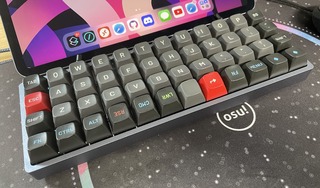
Why Keyboard-Driven?
- Speed - Hands stay on the home row, no context switching
- Precision - Keyboard commands are exact, no hunting for buttons
- Repeatability - Same keystrokes, same results
- Less strain - Reduced mouse movement means less shoulder/wrist fatigue
The Foundation: Vim Motions
Everything starts with vim-style navigation:
h j k l     Left, Down, Up, Right
w b         Word forward, Word back
0 $         Start of line, End of line
gg G        Top of file, Bottom of file
Ctrl+d/u    Half page down/up
Once these become muscle memory, you'll want them everywhere.
Window Management: yabai + skhd
yabai is a tiling window manager for macOS. skhd handles global hotkeys.
Focusing Windows
Alt + h         Focus window left
Alt + j         Focus window down
Alt + k         Focus window up
Alt + l         Focus window right
Moving Windows
Shift + Alt + h     Swap window left
Shift + Alt + j     Swap window down
Shift + Alt + k     Swap window up
Shift + Alt + l     Swap window right
Workspaces
Alt + 1-9           Switch to workspace
Shift + Alt + 1-9   Move window to workspace
Window Sizing
Alt + f             Toggle fullscreen
Alt + t             Toggle float
Alt + e             Balance all windows
The pattern is consistent: Alt for focus, Shift + Alt for actions.
Terminal: tmux
Inside the terminal, tmux manages sessions and panes.
Pane Navigation
Ctrl+b h/j/k/l    Move between panes (with vim-tmux-navigator)
Ctrl+b %          Split vertical
Ctrl+b "          Split horizontal
Ctrl+b z          Zoom current pane
Windows and Sessions
Ctrl+b c          New window
Ctrl+b n/p        Next/previous window
Ctrl+b w          Window picker
Ctrl+b d          Detach session
Editor: Neovim
Neovim is where vim motions shine. I also use Lazygit for git operations with Space + lg. My most-used keybindings:
Navigation
Space + sf        Find files
Space + sg        Grep text
Space + Space     Switch buffers
Space + e         File tree
gd                Go to definition
gr                Find references
Editing
ciw               Change inner word
di"               Delete inside quotes
yap               Yank around paragraph
.                 Repeat last change
u / Ctrl+r        Undo / Redo
Splits
Ctrl + h/j/k/l    Navigate splits
Space + sv        Split vertical
Space + sh        Split horizontal
Browser: Vimium
Vimium brings vim navigation to the browser:
j/k               Scroll down/up
d/u               Half page down/up
f                 Show link hints (click links)
F                 Open link in new tab
o                 Open URL/search
b                 Open bookmark
t                 Open new tab
x                 Close tab
X                 Restore closed tab
J/K               Previous/next tab
This eliminates most mouse usage while browsing.
Application Launcher: Raycast
Raycast replaces Spotlight for launching apps and running commands:
Cmd + Space Open Raycast
From there, type what you need:
- App names to launch them
- Calculator expressions
- Clipboard history
- Window management commands
- Custom scripts
The Mental Model
The key insight is consistency. Every tool uses similar patterns:
| Context | Focus | Action |
|---|---|---|
| yabai | Alt | Shift + Alt |
| tmux | Ctrl+b + motion | Ctrl+b + command |
| Neovim | motion keys | Space + key |
| Browser | j/k/h/l | f for actions |
Once you internalize h/j/k/l for movement, it transfers everywhere.
Getting Started
Don't try to learn everything at once:
- Week 1 - Learn vim motions in your editor
- Week 2 - Add Vimium to your browser
- Week 3 - Set up basic yabai/skhd for window focus
- Week 4 - Add tmux to your terminal workflow
Each layer builds on the last. The initial slowdown pays off quickly.
My skhd Config
Here's the core of my skhd configuration:
# Focus windows
alt - h : yabai -m window --focus west
alt - j : yabai -m window --focus south
alt - k : yabai -m window --focus north
alt - l : yabai -m window --focus east

# Swap windows
shift + alt - h : yabai -m window --swap west
shift + alt - j : yabai -m window --swap south
shift + alt - k : yabai -m window --swap north
shift + alt - l : yabai -m window --swap east

# Workspaces
alt - 1 : yabai -m space --focus 1
alt - 2 : yabai -m space --focus 2
alt - 3 : yabai -m space --focus 3

# Move to workspace
shift + alt - 1 : yabai -m window --space 1
shift + alt - 2 : yabai -m window --space 2
shift + alt - 3 : yabai -m window --space 3

# Sizing
alt - f : yabai -m window --toggle zoom-fullscreen
alt - t : yabai -m window --toggle float
The full config is in my dotfiles, managed with GNU Stow.
Worth It?
Absolutely. The learning curve is real - maybe 2-3 weeks of slower work. But after that:
- Navigation becomes instant
- Complex operations take seconds
- Repetitive tasks disappear
- Your hands thank you
The mouse isn't evil. But for developers who spend hours in terminals and editors, keeping your hands on the keyboard just makes sense.